
Introduction
In today’s fast-paced financial operations, manual bank reconciliation can be a major time sink. Bank statements often contain items that SAP’s automatic processing can’t fully handle on the first pass—such as unmatched payments, bank charges, or complex cash pooling transfers. These items land in the Reprocess Bank Statement Items app, requiring manual intervention. SAP S/4HANA solves this with processing rules (also called reprocessing rules) in the Fiori app Manage Processing Rules – For Bank Statements (commonly referred to as Manage Reprocessing Rules, app ID F3555). These rules let you define exact conditions and actions for G/L postings, AP/AR postings, or clearing open items. Best of all, you can set rules to Automatic mode so they run in the background during bank statement import—dramatically cutting down manual work.
In this post, we’ll cover:
- Why these rules are a game-changer
- Step-by-step setup for automatic rules
- How they integrate with the Reprocess Bank Statement Items app
- Real-world benefits and time savings
Why Use Automatic Processing Rules in SAP?
Without rules, finance teams spend hours (or days) manually posting or clearing items in the Reprocess Bank Statement Items app. With well-designed rules:
- Automation of repetitive tasks — Rules handle recurring items like interest charges, bank fees, or customer payments with specific memo text.
- Faster bank statement posting — Automated rules apply during import, so fewer items reach the reprocessing queue.
- Reduced errors — Standardized conditions and actions ensure consistent posting.
- Scalability — Perfect for high-volume environments or cash pooling scenarios.
- Time savings — Teams report 50-80% reduction in manual reprocessing effort, freeing staff for higher-value analysis.
Rules support one-step or two-step postings, clearing in sequence, and even dispute case creation.
Step-by-Step: How to Set Up Automatic Reprocessing Rules
Here’s exactly how to create and activate an automatic rule using the Manage Processing Rules – For Bank Statements app.
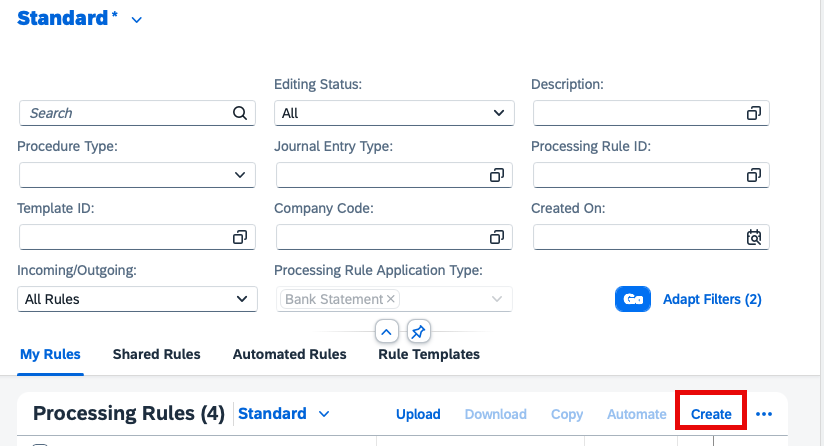
- Open the App Log into your SAP Fiori launchpad and search for Manage Processing Rules – For Bank Statements (or Manage Reprocessing Rules).

- Create a New Rule Click Create. The rule editor opens with several tabs.
- Fill in the Processing Rule Tab (Header Information)
- Description: Give it a clear name (e.g., “Auto-Post Customer Payments – Memo Contains Invoice Refs”).
- Journal Entry Type: Choose the correct document type (e.g., DZ – Customer Payment).
- Rule for: Select Incoming Payments or Outgoing Payments.
- Action Type: Choose one of:
- G/L Posting (on-account to a specific GL account)
- AP/AR Posting (post to subledger)
- Clear in Sequence (activate interpretation + allocation algorithms to clear open items)
- Other options like Process Returned Payments.
- Ignore Processor: Set to “Yes” if the rule should still apply even if someone has manually edited the item.

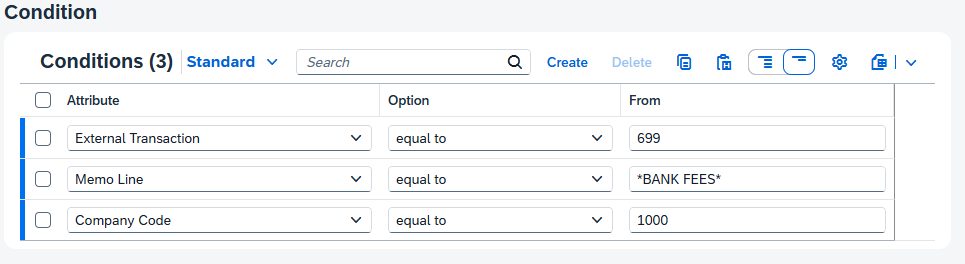
- Define Conditions (Conditions Tab) This is where the rule “matches” the right bank statement items. We should ensure the rules are specific enough to ensure it only triggers for the right transaction. In here we can add one or more conditions:
- Attributes – These are the categories of data that can be filtered.
- Examples – Amount, Company Code, Currency, External Transaction, House Bank, Memo Line, Partner IBAN, Partner Name, etc.
- Operators – Define what type of comparison we are doing on the attributes
- Examples – Equals, contains, between, greater than, etc.
- From/To – Defines the value we are looking for in the search string.
- In the below example, we are searching for two things.
- First, we want to make sure the BAI code (or external transaction code) equals 699. This code is commonly used for bank fees or other fees.
- Second, we are checking to see if the text ‘BANK FEES’ shows up in the text of the item on the bank statement. Searching for this makes sure the transaction is specific.
- Commonly, I will also search for house bank and account ID to make sure the posting change only applies to a specific account.
- Attributes – These are the categories of data that can be filtered.
- Configure Actions Depending on your Action Type, additional tabs appear:
- For G/L Posting: Specify the target G/L account.
- For Clear in Sequence: Choose Processing Instructions (e.g., 0010 for business partner payments) and interpretation/allocation algorithms.
- Define residual item handling, reason codes, or on-account fallback options.
- In the below example, we are going to post this item to the account ‘311000’. As you can see, additional attributes can be added to the posting. If you click on the arrow button on the right side of this line, then even more attributes will become available for the posting.

- Save the Rule Click Create. The rule is now saved and available for manual use.
- Set the Rule to Automatic
- Now that the rule has been saved, additional options become available.
- To see this, select the rule in the list view.
- Click the Automate Rule button (usually in the top-right or via the three-dot menu).
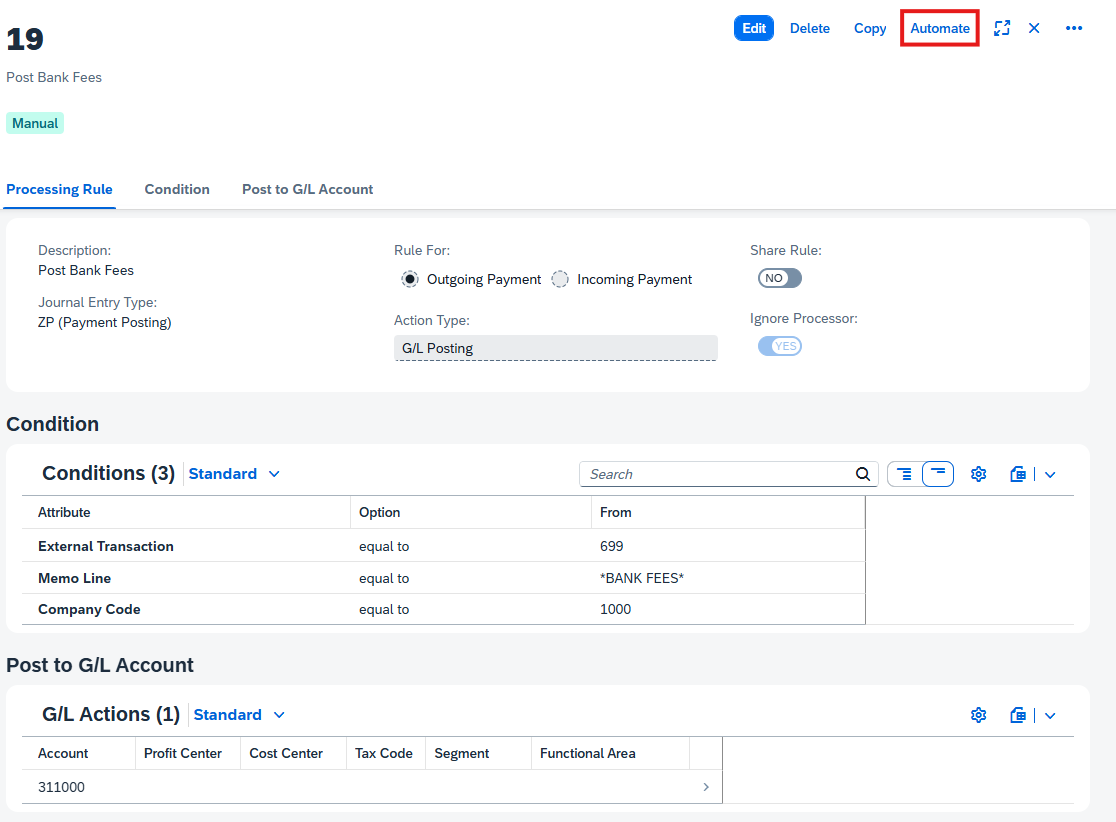
- In the pop-up, select the Procedure Type (e.g., 001 – One-Step Posting or Two-Step Posting).

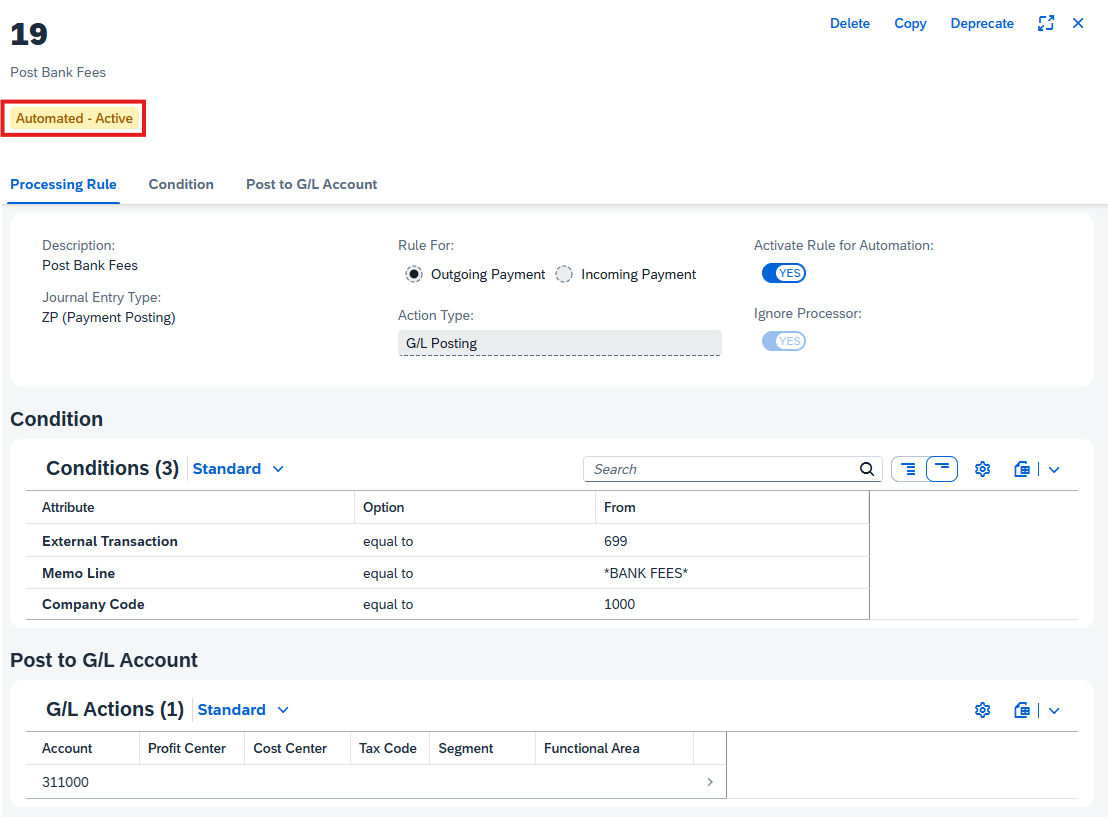
- Confirm. The rule is now active for automatic processing on future bank statement imports. The Automated-Active indicator is highlighted below.
Pro Tip: You can also create rules directly from the Reprocess Bank Statement Items app by selecting an item and choosing “Create Rule.” SAP intelligently suggests conditions based on the item’s data.
Mass Management: Export/import rules via Excel or XML for bulk updates or transfers between systems.
How Rules Work with the Reprocess Bank Statement Items App
The Reprocess Bank Statement Items app (F1520) is where unmatched items normally appear. With automatic rules:
- During bank statement upload/import (via Manage Bank Statements app), the system checks active rules first.
- Matching items are processed automatically and do not appear (or appear with “Auto-Posted” status).
- Non-matching or failed items stay in the reprocessing queue.
- You can still apply any rule manually by selecting items and clicking Apply Rule.
This hybrid approach gives you full control while maximizing automation.
Note: Classic search strings in OTPM trigger first in the processing logic. After all those classic search strings are used, then the system will look at the posting rules in the Manage Processing Rules – For Bank Statements app.
Conclusion: Save Hours Every Month with SAP Automation
By leveraging the Manage Reprocessing Rules app and setting rules to Automatic, finance teams eliminate repetitive manual work in the Reprocess Bank Statement Items app. The result? Faster month-end close, fewer errors, and more time for strategic financial analysis. Ready to automate your bank reconciliation? Log into your SAP Fiori launchpad today, open Manage Processing Rules – For Bank Statements, and start building your first rule. Your future self (and your reconciliation team) will thank you!
Have questions about specific rule scenarios (e.g., cash pooling or returned payments)? Drop a comment below or reach out to our SAP Treasury consulting team.